Kimi WebBridge: Automate Your Browser with AI Agents
Kimi WebBridge is a browser extension that turns routine web tasks into automated workflows. It is designed for use with AI agents—letting them click, fill forms, navigate, and extract data from web pages. The product is marketed with a clear promise: “Tedious work, on autopilot.”
It can operate with a local agent or directly with Kimi Desktop. This makes it a bridge between powerful AI reasoning and the everyday web interfaces we all use.
How to Install and Connect
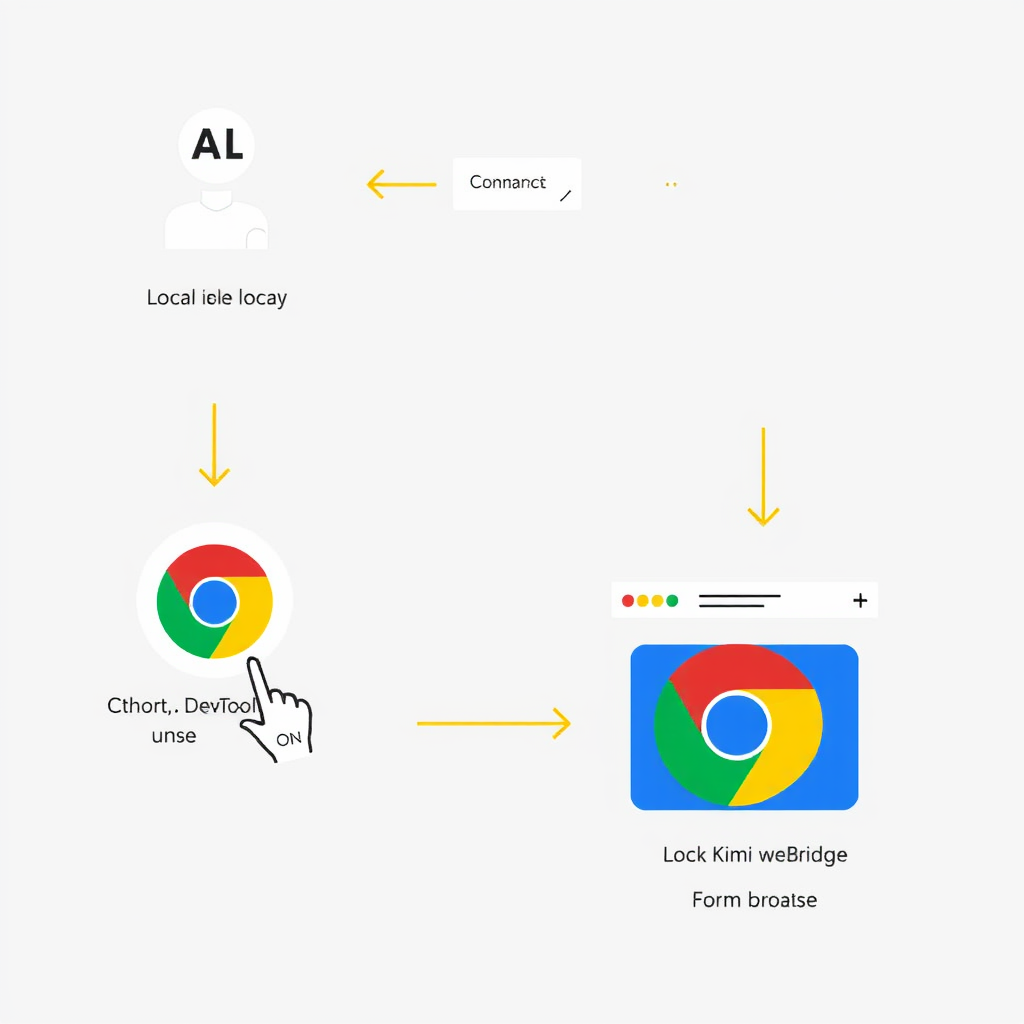
Installing Kimi WebBridge is a two-step process. First, add the extension from the Chrome Web Store. After installation, you must send a connection command to your AI agent. The command sets up a local service that links the agent to the browser extension.
Two commands are provided—one for macOS and one for Windows. Here is the macOS command (the Windows equivalent is available via a toggle on the product page):
curl -fsSL https://kimi-web-img.moonshot.cn/webbridge/install.sh | bash
The page instructs: “Paste the command below and send it to your Agent. Your Agent will connect to Kimi WebBridge automatically.” After successful execution, a “Setup complete” label confirms the connection.
Supported AI Agents
Kimi WebBridge works with a growing list of AI development tools:
- Kimi Code
- Claude Code
- Cursor
- Codex
- Hermes
- OpenClaw
Three example use cases are demonstrated via video:
- Find Trending Topics
- Collect Job Listings
- Compare Shopping Prices
These illustrate how the extension can automate social media research, job hunting, and e-commerce price comparisons.
How It Works – and Why It’s Private
Behind the scenes, Kimi WebBridge operates by pairing a local service with the browser extension. The AI agent sends commands to the local service, which then uses the Chrome DevTools Protocol to interact with your existing Chrome or Edge browser. It can navigate, click, take screenshots, and read page content. Results are sent back to the agent.
A critical detail from the FAQ:
“Everything runs locally, so your login sessions and page content never leave your device.”
This ensures that sensitive data—like authenticated sessions and personal information—stays under your control.
Troubleshooting and Support
If the extension shows as disconnected, the FAQ recommends:
- Ensure Kimi WebBridge is installed.
- Resend the connection command in Kimi Claw Desktop and run it again.
- Restart the Kimi Desktop App after the command finishes.
For further issues, users are directed to the Help Center at https://www.kimi.com/help/kimi-webbridge.
Kimi WebBridge represents a practical step toward seamless human-agent collaboration on the web—one that respects privacy while unlocking automation.